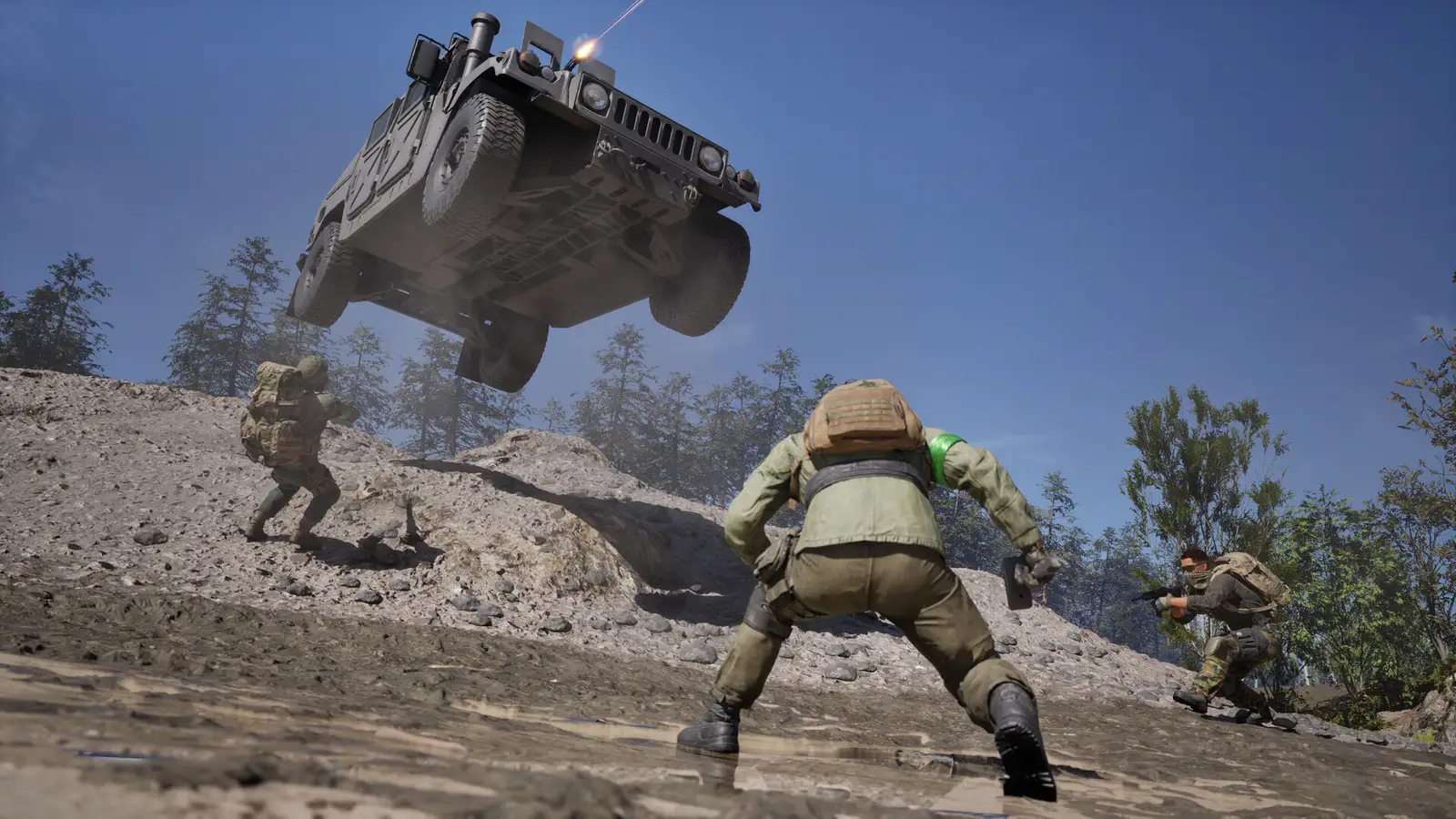
WARDOGS Low FPS: Previous Worksheet & Combined Performance Guide
The short answer
Start by measuring a repeatable scene and distinguishing low frame rate from network delay. Record your resolution, preset, hardware and driver, then compare one setting change at a time. This is a measurement checklist; GameFix Radar has no independently tested WARDOGS FPS results or guaranteed performance fix.
Evidence & limitsNot independently tested
- Evidence level
- General troubleshooting
- Last tested
- Not independently tested
- Game version / Build
- Not independently checked
- Source review
- · not a gameplay test
The baseline and tuning material below is retained from our earlier worksheet. The combined performance guide now includes the current update context, settings comparisons and stutter checks in one place.
Low FPS and network lag need different checks
A frame-rate counter falling while camera movement becomes uneven is a rendering observation. Players jumping between positions while the camera stays smooth suggests a different investigation, such as connection or server issues. Both problems can occur together; record each separately.
Do not use a menu frame rate as your only measurement. It does not represent the scene that actually slows down during play.
Create a baseline you can repeat
Choose a short route or viewpoint you can revisit safely in the game. Keep the resolution, preset and measurement method unchanged for several observations. In a multiplayer match, player count and destruction can change the workload, so record those differences instead of treating every run as identical.
Save this information with each result:
- CPU, GPU, memory and graphics-driver version.
- Game version if displayed, resolution and preset.
- Upscaling, frame generation and frame-limit state, where those controls exist.
- Map, approximate location, duration and whether the slowdown was constant or intermittent.
- The observed FPS range and visible stutters. Include 1% lows only if your measurement tool actually records them.
Try a narrow comparison
Finish pending game updates and check official driver releases first. Close unnecessary user applications that are consuming substantial resources, while keeping security services running. These are general preparation steps, not proven WARDOGS remedies.
Next, use only controls present in your build. Lower one rendering-cost option, such as resolution or a lighting-related setting, and repeat your baseline. If the result improves consistently, compare the visual trade-off before keeping it. If nothing changes, restore that option; lowering every setting together hides which change mattered.
Do not diagnose a CPU bottleneck solely from one total-CPU percentage or one failed resolution test. Caps, changing scenes and other limits can make that shortcut misleading.
Interpret stutters separately
If the average looks acceptable but motion repeatedly pauses, note when it happens: entering new areas, after a long session or during heavy action. Keep a brief timeline. Avoid claiming a shader, memory-leak or thermal cause without evidence specific to your setup.
For laptop results, include whether the machine was plugged in and its power mode. Compare like with like rather than attributing a change in power conditions to a graphics tweak.
Keep only improvements you can reproduce
Repeat the original baseline and the candidate change. Favor a stable experience with acceptable image quality over a single best number. Restore changes that do not hold up, and keep your notes for the next game update. The settings guide explains how to turn those notes into a personal preset.
Sources & verification
Reviewed 11 Sept 2026. Official facts are separated from general guidance and player reports. We have not independently tested these steps in-game.
- Intel: How to Fix Your Low Frame RateGeneral PC guidance on software, graphics workload and settings trade-offs. Not WARDOGS benchmarks.
- WARDOGS on SteamDeveloper-listed PC requirements.
Independent game help. Not affiliated with any developer, publisher or platform. editorial policy.