WARDOGS PC Performance: Graphics Settings & FPS Checks
The short answer
Start with the symptom, not a universal preset. Check the dated WARDOGS notes below for frame generation and hitches when taking control, then compare one setting in the same scene. We have not benchmarked a best-settings profile. Keep only changes that help repeatedly, and check connection symptoms separately.
Evidence & limitsNot independently tested
- Evidence level
- Untested settings guide
- Last tested
- Not independently tested
- Game version / Build
- Official notes reviewed 14 October 2026; current client and hardware not independently tested
- Source review
- · not a gameplay test
Identify the performance problem
| Observation | What to compare |
|---|---|
| Low FPS with sluggish camera movement | Rendering workload in the same scene |
| A hitch when you take control of a character | Record that moment separately and compare your installed build with the dated changelog below |
| FPS drops only while aiming or changing magnification | Record the optic, magnification and visible option labels; compare the same view before and during aiming |
| Pauses recur at roughly the same interval | Record exact pause times, duration and any coinciding background activity; timing alone does not identify a cause |
| Higher displayed FPS but poor motion or responsiveness | Record frame-generation state and compare movement as well as the counter |
| Players jump position while your camera remains smooth | Connection symptoms as well as rendering; use server checks |
| Game or PC closes instead of continuing to render | Use crash checks |
These observations can overlap. A high displayed FPS number is not, on its own, evidence of smooth or responsive play.
WARDOGS controller support is partial: an Xbox pad is detected immediately with deadzone, aim-curve and a little aim assist, but button rebinding is unreliable and several menus expect a keyboard. If a gamepad is not detected or rebinding fails, see the controller guide before changing graphics settings.
WARDOGS frame generation and taking-control hitches
The 9 September Season 1 changelog says that disabling DLSS Frame Generation no longer requires a restart. It does not make the same promise about enabling it. The developer also reported reducing shadow-cache refreshes to address hitching when taking control of a character, plus fixes for two frame-generation crash paths.
These are dated developer reports, not measurements on your PC. Record whether a pause happens when you take control, during ordinary movement, or when the game closes. Use the crash guide for a crash rather than treating it as a low-FPS result. If your installation offers frame generation, save its current state before comparing it; no on/off state is universally best.
What the developer’s FPS targets mean
Steam’s listed requirements describe a minimum target of 1080p Low at 60 FPS with upscaling. The recommended notes separately describe 1440p Medium at 70 FPS or more with native rendering, or 4K Medium at 60 FPS or more with upscaling. These are developer-listed targets, not our benchmark results or a guarantee.
Record output resolution, native or upscaled rendering, and frame-generation state separately. Matching a listed GPU alone does not prove that every busy match will reach a target; the published notes do not provide a complete test scene or driver profile.
Save and measure a baseline
- Finish pending game updates and record the visible version. Do not mix results from different builds.
- Capture your original graphics pages. Note resolution, native or upscaled rendering, frame-generation state, driver and any frame limit.
- Choose a short, repeatable route or viewpoint that represents the slowdown. A menu-only measurement is not a match benchmark.
- Keep settings and measurement method constant for several observations.
- Record differences in player activity, destruction or viewpoint; multiplayer runs are not perfectly controlled.
- Compare one change, then return to the baseline to see whether the difference repeats.
Keep a short record with CPU/GPU/RAM, Windows and driver versions, scene and duration, original setting → one changed setting, measured FPS, pauses and visual quality. Include 1% lows only if your tool records them. Return to the original setting and repeat the comparison before keeping a change.
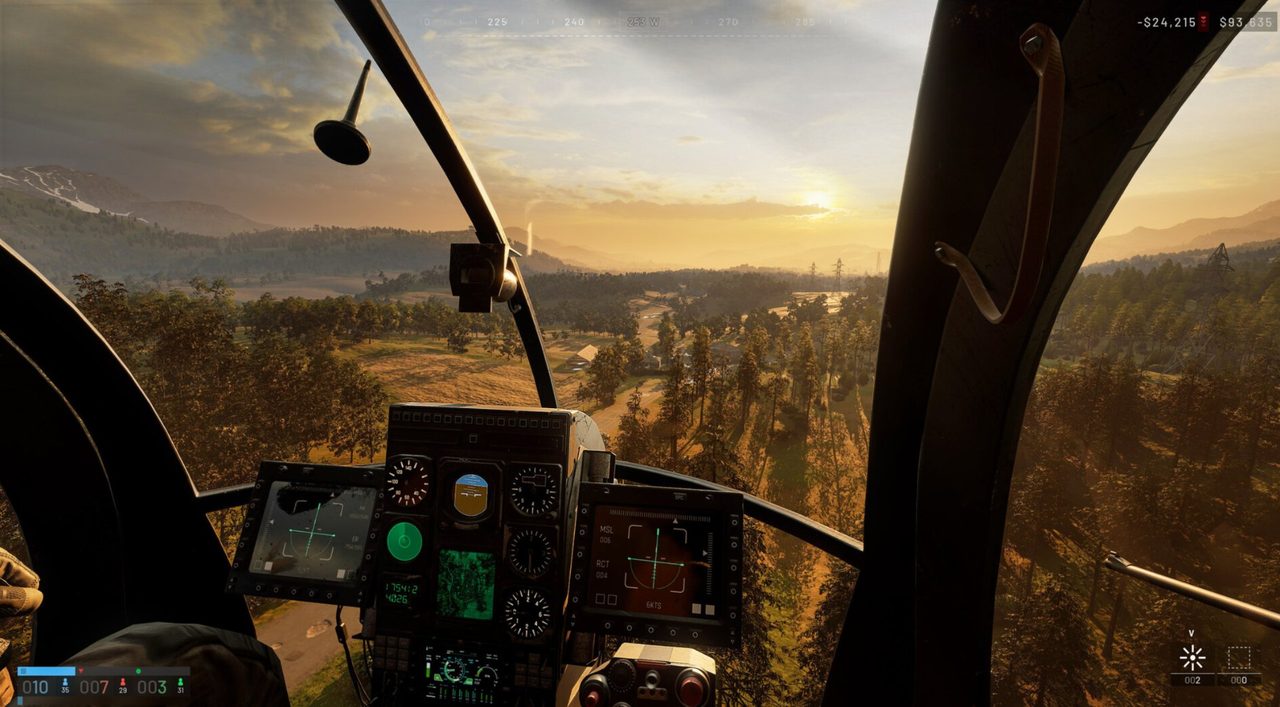
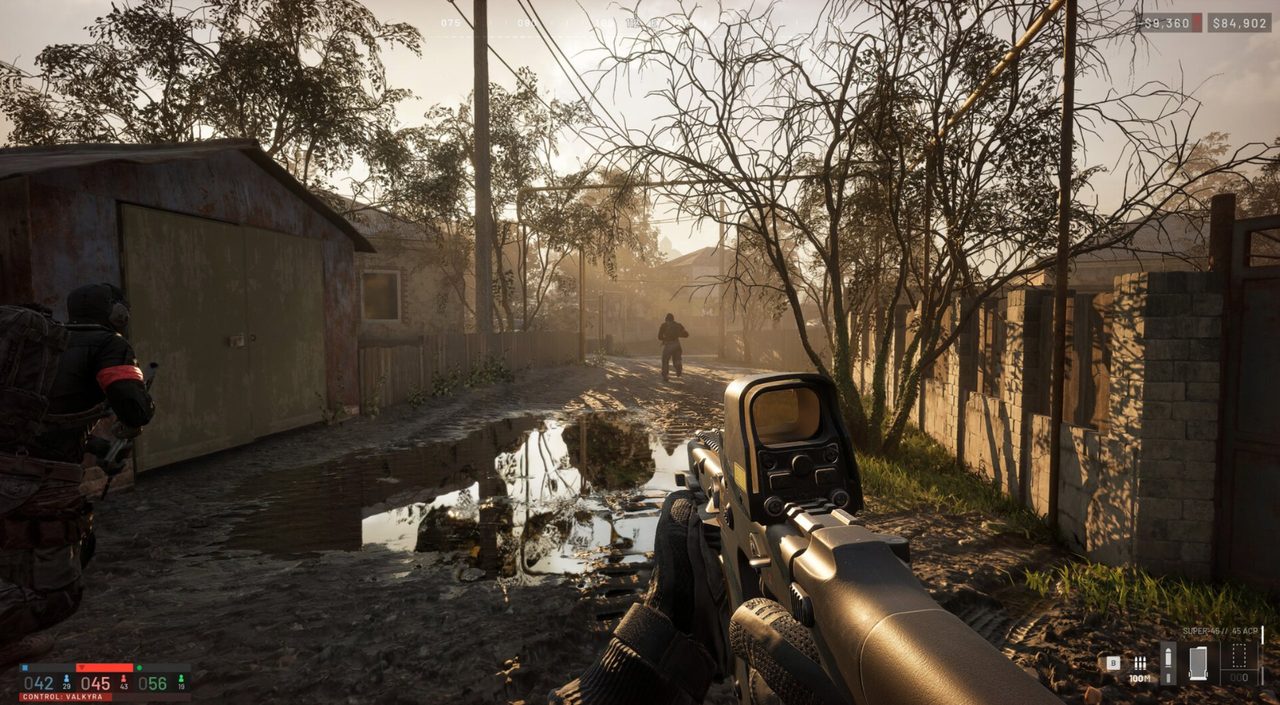
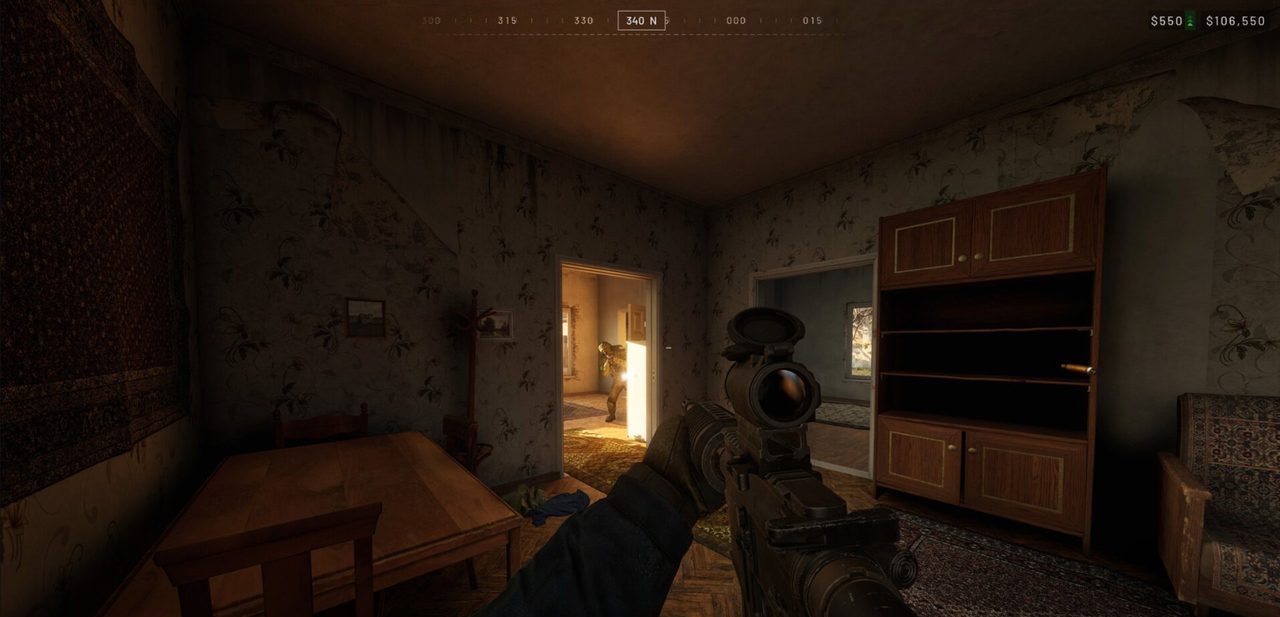
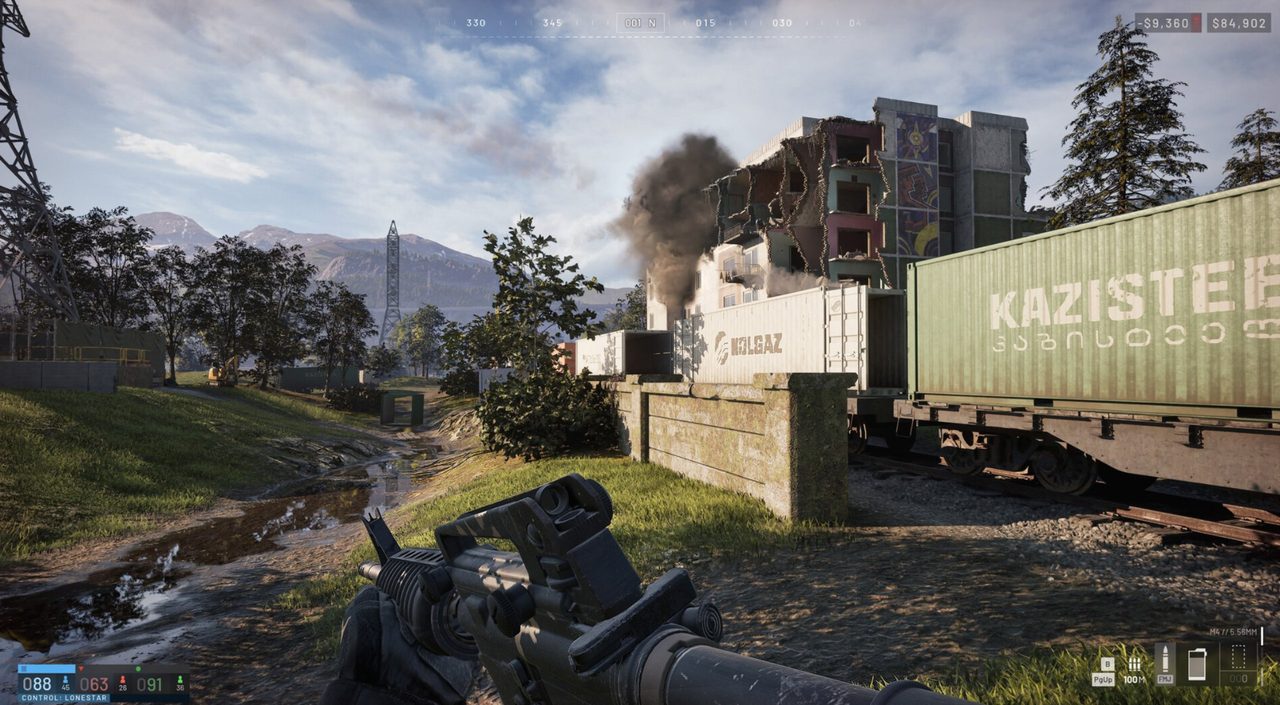
Official material can help you choose that repeatable viewpoint, because the same scene type reappears across maps: an open sightline, a built-up area, an interior and a low-light view. The images below are official WARDOGS material, not frames captured by this site and not a measured benchmark run.
Settings comparison worksheet
The following are general PC tuning comparisons, not a verified WARDOGS preset. Use a row only if the relevant control exists in your build.
| Control | Reversible comparison | Watch for |
|---|---|---|
| Resolution or render scale | Compare one lower value with the original | Clarity and repeatable frame-rate change |
| Shadows, lighting or reflections | Reduce one option by one step | Whether the same busy scene improves |
| Texture quality | Compare one lower setting | Detail and whether pauses change |
| Upscaling | Compare the current mode with one available alternative | Moving detail, readability and performance |
| Frame generation | Record the state and compare separately where supported | Motion, responsiveness and stability, not just the counter |
| Frame cap or synchronization | Compare one configuration | Tearing, pacing and responsiveness |
Do not lower everything at once. If a change does not produce a repeatable benefit, restore it before the next comparison.
Investigate stutters separately
Record when pauses occur: taking control of a character, entering a location, aiming, after a long session, or during heavier action. For recurring pauses, keep their timestamps and intervals alongside any coinciding background activity. An event occurring at the same time is a lead to investigate, not proof of a fix. Do not label the cause a shader issue, memory leak or CPU bottleneck without additional evidence.
For a laptop, keep power connection and power mode consistent. Close unnecessary user applications if they are consuming resources, while keeping security services running.
Avoid deleting shader or configuration folders as a routine experiment. First preserve settings and read guidance applicable to the actual symptom.
How can I display FPS while comparing WARDOGS settings
Valve documents Steam’s performance overlay under Settings → In Game → Performance Overlay. Where supported by your Steam client and hardware, it can show performance over time and distinguish generated frames from the game-rendered rate. Keep the same display mode for each comparison. A minimum value shown by a counter is not automatically a measured 1% low.
This is a Steam feature, not a WARDOGS in-game command or hotkey. See Valve’s performance-monitor announcement.
Recheck after a new build
As reviewed on 14 October 2026, the Season 2 preview schedules the release for 15 October and mentions further performance work; it does not verify improvements already active in today’s client. Check the actual release notes and create a new baseline after installing a new build.
Sources & verification
Reviewed 14 Oct 2026. Official facts are separated from general guidance and player reports. We have not independently tested these steps in-game.
- BULKHEAD: Pre-Load Live & Season 1 Changelog — 9 September 2026Developer reports: disabling DLSS Frame Generation without a restart, shadow-cache work for taking-control hitches and two frame-generation crash fixes; not our benchmarks.
- Intel: How to Fix Your Low Frame RateGeneral PC performance guidance, not WARDOGS benchmarks.
- WARDOGS on SteamDeveloper-listed performance targets distinguish native rendering from upscaling; not independent test results.
- Valve: Steam Client Update — Performance Monitor — 30 June 2025Steam's performance overlay and rendered/generated frame metrics where supported; not a WARDOGS in-game command.
- BULKHEAD: Season 02 Preview — 9 October 2026Preview schedules 15 October; it does not verify improvements already active on the review date.
Independent game help. Not affiliated with any developer, publisher or platform. editorial policy.