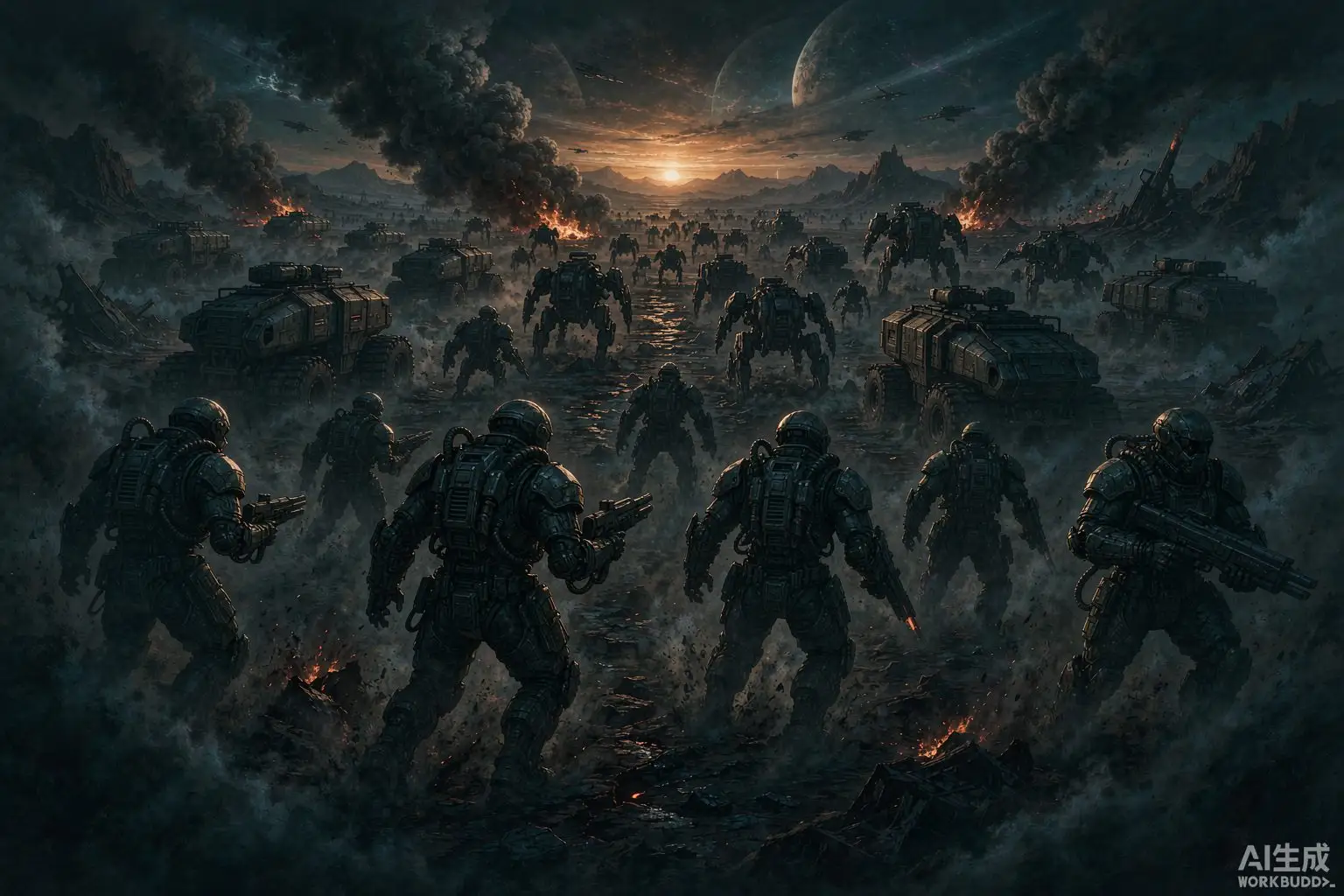
Helldivers 2 Best Settings: Graphics and FPS for Bug Breaches
The short answer
Helldivers 2 is worst during bug breaches and bot drops, where particle and volumetric effects dominate. Lower Particle Quality, set Volumetric Fog/Clouds to Low, turn off Screen-Space Global Illumination, and enable a Quality upscaler before touching resolution.
Evidence & limitsNot independently tested
- Evidence level
- General troubleshooting
- Last tested
- Not independently tested
- Game version / Build
- Helldivers 2 PC (Steam). Independent settings guides and community reports reviewed 29 October 2026; frame rates not measured in a running client.
- Source review
- · not a gameplay test

Tune for the breach, not the ship
This guide covers Helldivers 2 on PC. Independent settings guides and community reports were reviewed on 29 October 2026. We have not measured frame rates in a running client.
Helldivers 2 does not show its real workload in the tutorial or on your ship. The frames that matter are a level 7+ bug breach or bot drop with four players, orbital strikes and dozens of enemies on screen — and that scene is dominated by particle effects, not terrain or textures.
What to lower first
- Particle Quality — the biggest lever during breaches and drops, where frames matter most.
- Volumetric Fog / Clouds → Low — expensive and it also reduces visibility; low is both faster and more readable.
- Screen-Space Global Illumination → Off — a large gain with little visual loss in combat.
- Shadow Quality → Low — shadows cost a lot while adding little in a fast firefight.
- Bloom → Low — keeps explosions from washing out the screen.
Texture Quality is not the problem. Keep textures as high as your VRAM allows; they cost memory, not much frame rate.
Upscaling and render scale
Render scale and anti-aliasing are among the biggest levers. Enable a Quality upscaling preset (DLSS / FSR / XeSS equivalent) if you are GPU-limited, and add a touch of Sharpness to recover detail. This is the single most effective FPS lever on most GPUs.
- Frame generation doubles on-screen FPS but adds input latency — fine for casual play, less ideal for competitive aiming.
- V-Sync off, and enable NVIDIA Reflex / AMD Anti-Lag to cut latency.
- Cap FPS a few frames below your refresh rate to stabilise frame times through the chaos.
Async Compute: leave it off
One commonly missed setting: performance testing reports that Async Compute can cost up to 20% FPS in Helldivers 2. Leave it off unless you have specifically tested and confirmed a gain on your own hardware.
Match settings to your hardware
| Hardware | Resolution | Upscaler | Shadows / Particles |
|---|---|---|---|
| Entry (GTX 1060 / RX 580) | 1080p | FSR Balanced | Low |
| Mid (RTX 3070 / RX 6700 XT) | 1080p–1440p | DLSS / FSR Quality | Medium |
| High (RTX 4080 / RX 7900 XTX) | 1440p–4K | DLSS Quality or native | High |
Keep Anti-Aliasing, Motion Blur and V-Sync off at every tier.
System checks
- Use a high-performance Windows power plan; laptops on battery saver silently halve FPS.
- Close browsers, capture tools and RGB software.
- Install on an SSD, keep GPU drivers current, and let shader compilation finish after a patch.
- Enable XMP/EXPO in BIOS so your RAM runs at its rated speed.
What we have not confirmed
These are independent community settings guides, not measured benchmarks, and we have not tested them in a running client. Judge settings during a heavy mission, not the tutorial, and change one option at a time. If a setting label changes after a patch, apply the same logic: lower GI, fog and shadows first, use upscaling for headroom, and keep the image sharp.
Sources & verification
Reviewed 29 Oct 2026. Official facts are separated from general guidance and player reports. We have not independently tested these steps in-game.
- Best Helldivers 2 Settings for FPS and Performance (tier1settings)Independent guide. Source for the biggest FPS killers (render scale, lighting, cloud effects) and the setting-by-setting recommendation. Not official.
- Helldivers 2 PC 设置指南 (GAMES.GG)Independent guide. Source for the Async Compute off recommendation and the hardware-tier presets. Not official.
- Helldivers 2 Optimization Guide (GameRulePro)Independent guide with competitive vs quality presets and upscaling advice. Not official.
- Helldivers 2 PC Settings Guide (GameOptimizer)Independent reference noting that particle and enemy counts dominate the real workload. Not official.
Independent game help. Not affiliated with any developer, publisher or platform. editorial policy.